Melancholy scenes: 6 AI expression edits for a cinematic, quiet sadness
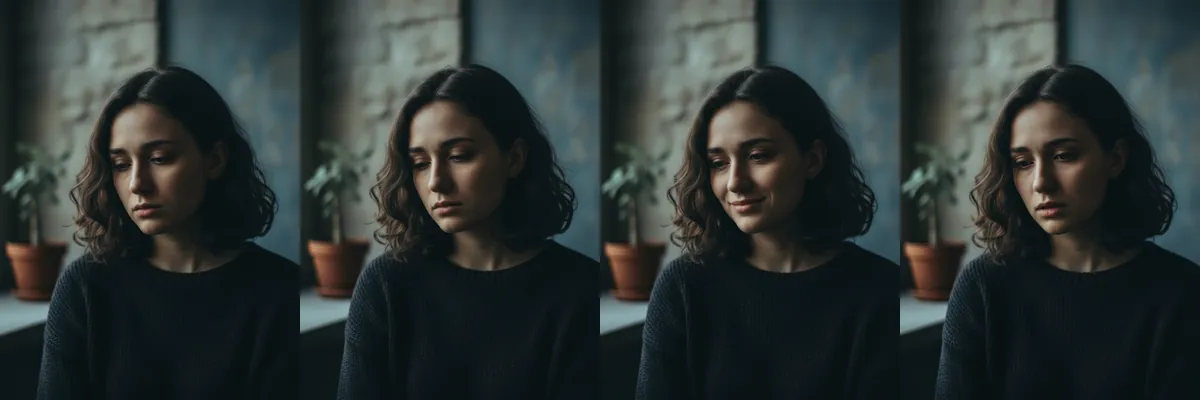
This set is for photos that need a film-still feeling: a moody portrait where the face carries the story. Each prompt adjusts only the expression, so your own lighting and setting do the rest.
Every edit is a Reshot AI template you can open with a photo in the iPhone app, or copy into another editor. The prompts all begin by keeping everything unchanged except the expression.
How these templates use your photo
Each template starts from a photo you pick. The prompt tells the model what to change, and your photo is the reference for everything else. Clear, front-facing photos with even light give the closest match.
1. Subtle frown
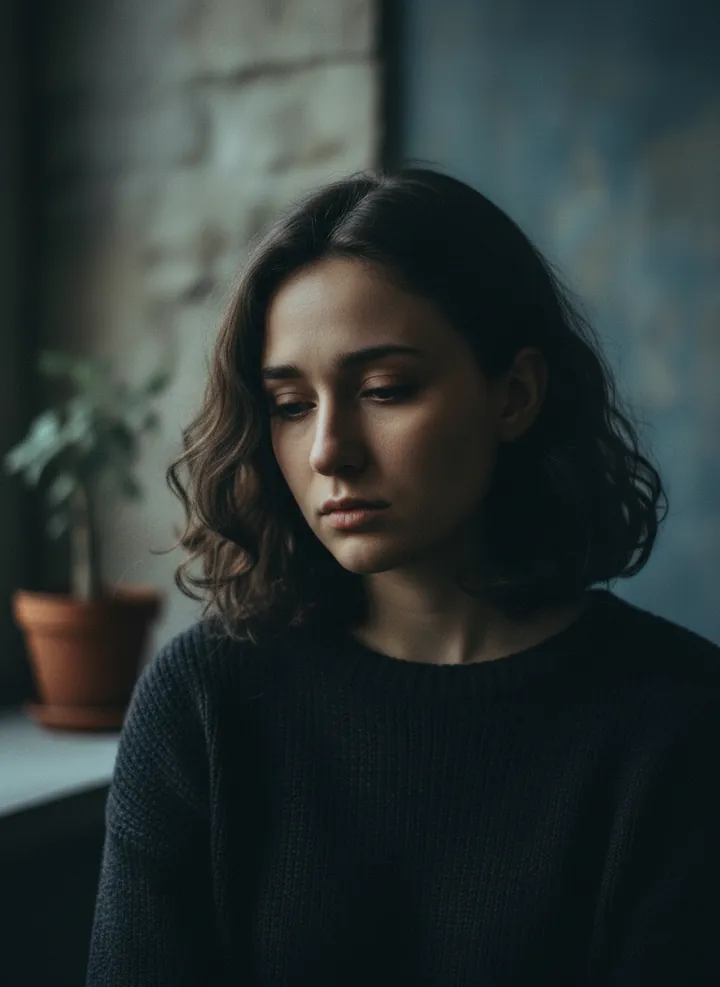
A subtle frown with lowered eyes that conveys sadness without overacting. The pose, sweater and dim room around the face stay exactly as they were.
Keep everything unchanged and apply a subtle frown that conveys sadness
2. Half-closed, distant eyes
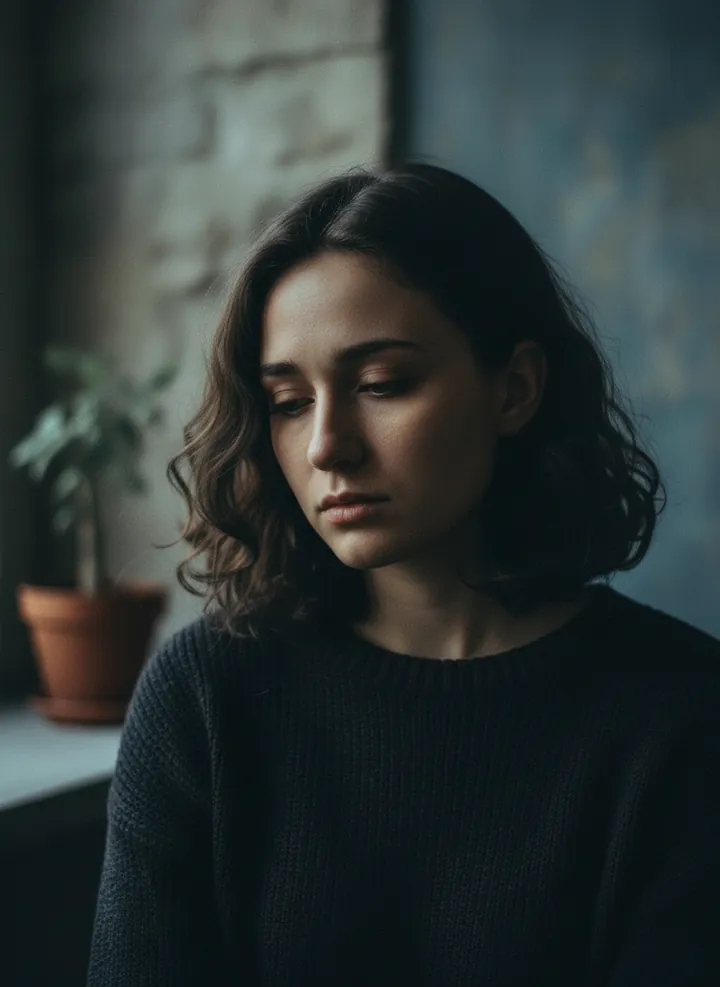
A distant gaze with slightly closed eyes, as if lost in thought. Only the eyes and brow shift, and the background is left alone.
Keep everything unchanged and apply a distant gaze with slightly closed eyes
3. Wistful smile
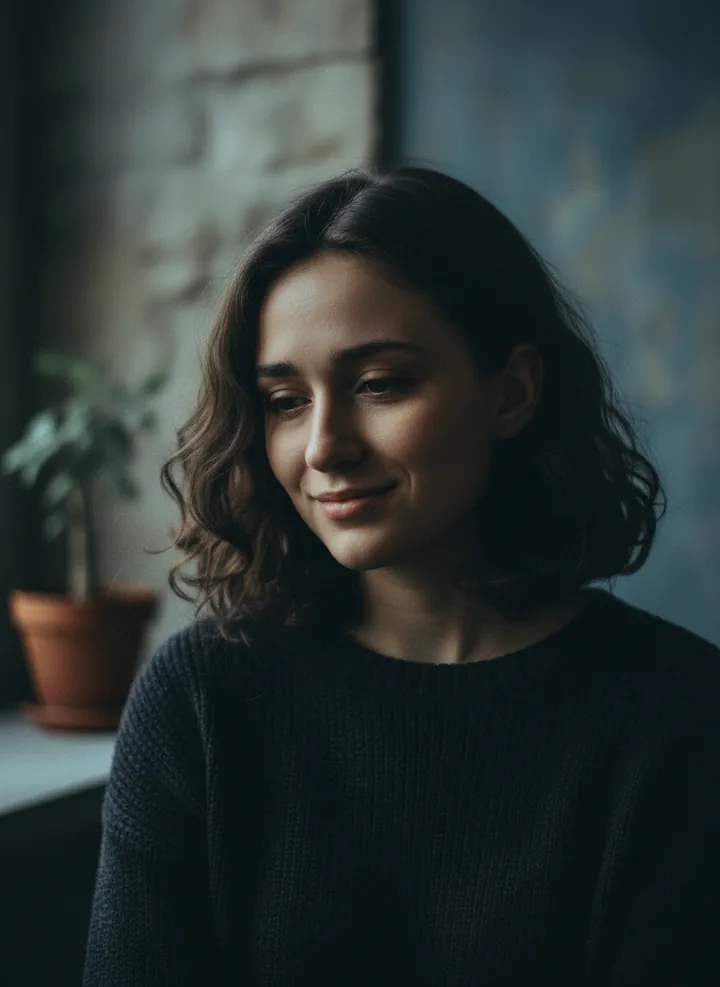
A small wistful smile that reflects longing, with the head still tilted down. The rest of the photo stays as it was, so it reads as the same moment with a softer mood.
Keep everything unchanged and apply a wistful smile that reflects longing
4. Disappointed surprise
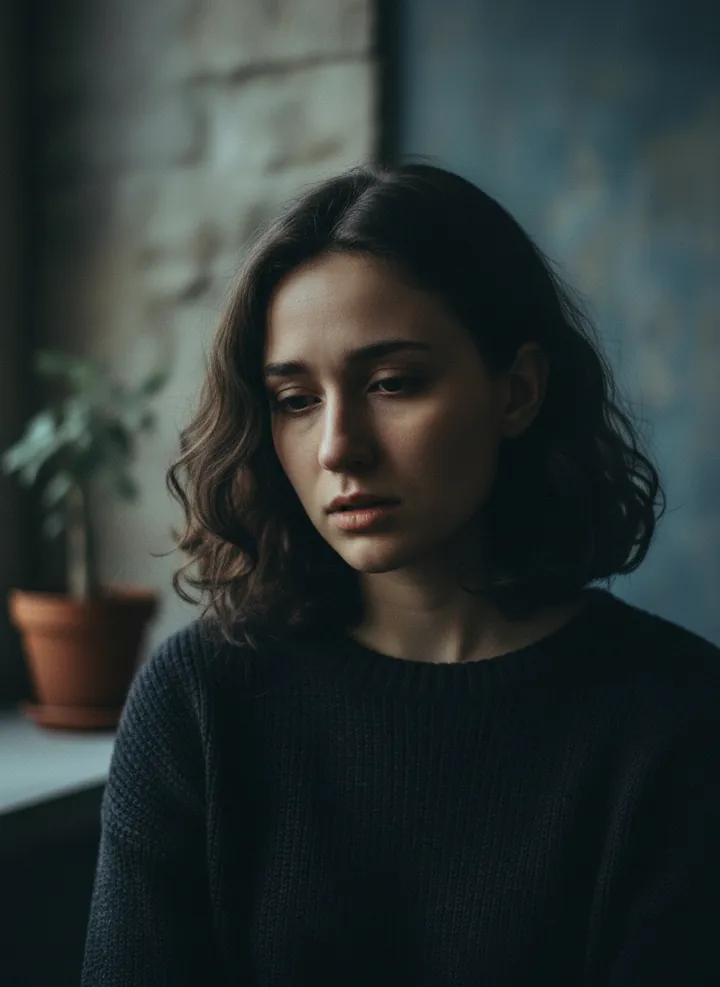
Raised brows and slightly parted lips for a look of disappointed surprise. The prompt keeps lighting, hair and setting unchanged.
Keep everything unchanged and apply an expression of disappointed surprise
5. Tranquil sadness
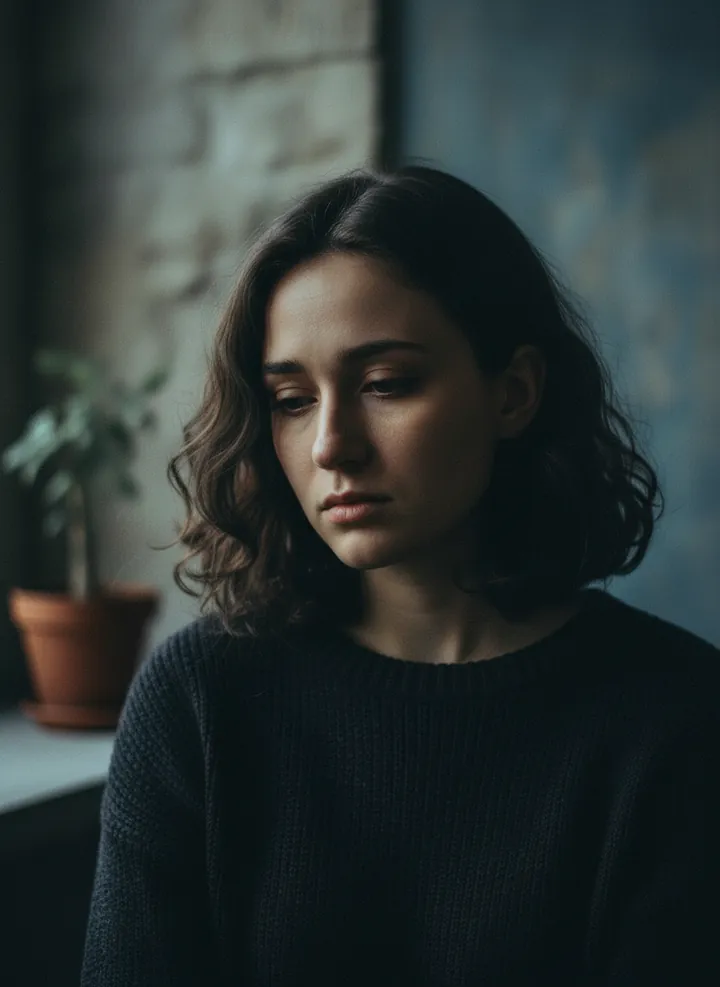
A calm, settled sadness with relaxed features and lowered eyes. Nothing beyond the expression is changed, which keeps the edit understated.
Keep everything unchanged and apply an expression of tranquil sadness
6. Tear rolling down the cheek
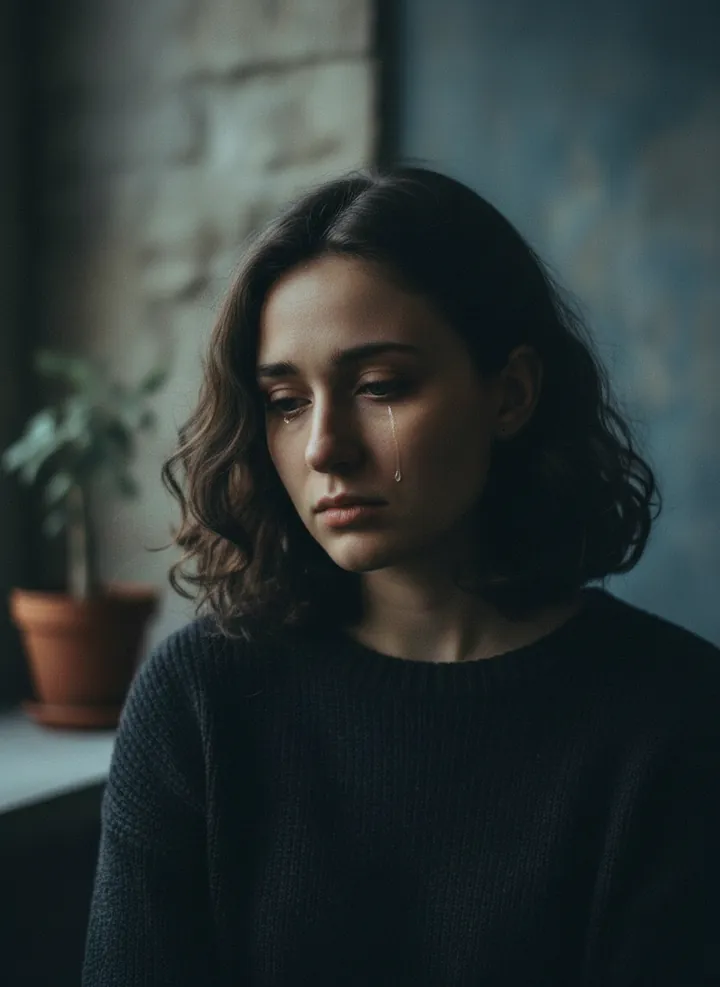
A gentle tear added rolling down one cheek, with the gaze held low. Everything else in the frame stays untouched.
Keep everything unchanged and apply a gentle tear rolling down the cheek
How to use these templates in Reshot AI
- Open Reshot AI on iPhone and find the Melancholy Scenes category on the home screen.
- Pick a template. Choose a clear, front-facing selfie with good light; it is the reference for your face.
- Generate. Results arrive in the app’s History, so you can come back for them later.
- Want a different expression in the result? Open it in the Face Editor and add a smile, open closed eyes, or turn the head.
Frequently asked questions
Will the result look like me?
Each template uses your photo as the reference and describes the look, not a new face. Clear, front-facing photos with even light give the closest match.
Can I use these prompts outside Reshot AI?
Yes. The copy button gives you the full prompt; it works in any image tool that accepts a reference photo. Results will differ by model.
Is Reshot AI free?
The app is free to download. Generating templates uses credits or a Premium subscription; details are in the app.
Try Melancholy Scenes in Reshot AI
Download Reshot AI, pick a template, choose a selfie.
⬇ Download on the App Store