How to Open Closed Eyes in a Photo
The group finally lined up, the photographer counted down — and someone blinked. Blinks ruin more group photos than anything else. Instead of choosing between ten almost-good frames, you can open closed eyes in a photo with AI and keep the best shot.
How can AI open eyes that are closed?
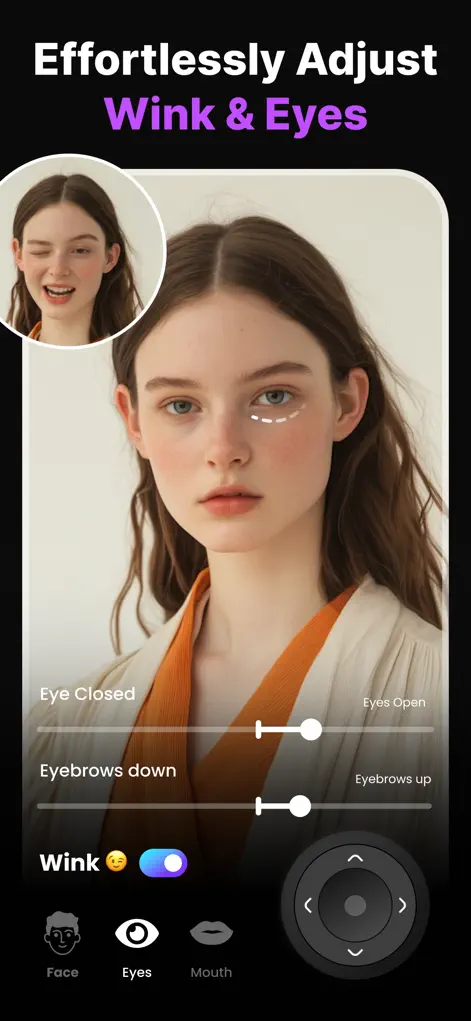
AI expression editors analyze the visible facial structure — brow, eye sockets, skin tone, lighting direction — and regenerate the eye region realistically. Unlike old tools that pasted stock eyes onto the face, Reshot AI's eyelid-openness control reconstructs that person's eyes, so shape and color stay true to them.
Step-by-Step: How to Open Closed Eyes in a Photo
- Load the blink photo. Open Reshot AI and import the photo. In a group shot, tap the face with the closed or half-closed eyes.
- Open the Eye Expression Studio. Go to the eye controls where you'll find eyelid openness, eye direction, and eyebrow sliders.
- Raise the eyelid-openness slider. Increase openness until the eyes look naturally awake. If the gaze lands somewhere odd, nudge the eye-direction control toward the camera.
- Save the fixed photo. Compare before/after and export the high-res result.
When a blink can be fixed, and when to use another frame
Opening eyes works best when the blinking face is large, sharp and turned mostly toward the camera. Reshot AI reconstructs the eyes from what it can see of the face, so a close-up portrait or a tightly cropped group shot gives it much more to go on than a crowd photo taken from across the room.
Expect poor results, or no change, when the face is tiny in the frame, when sunglasses, hair or a hand cover the eyes, when the photo is motion-blurred, or when the head is turned well away. A full blink is also a bigger reconstruction than a light squint, so it is more likely to look slightly off.
If you took several frames, check whether that person has open eyes in another one. A frame with a small squint the app can fix is often a better starting point than a full blink it has to rebuild.
Checking opened eyes before you save
Opened eyes can look fine on a phone screen and wrong when printed or viewed large. Zoom in on the edit and check:
- Both eyes are open by a similar amount, unless the person naturally has one eye slightly narrower.
- The eyes point where the head points, or where you meant them to.
- The eyelids and the skin under the eyes still match the lighting on the rest of the face.
- The eyes fit the rest of the expression: very wide eyes on a relaxed smile can look alarmed.
Try It on Your Own Photo
Expression Editor – Reshot AI is free to download on the App Store. Fix your first photo in under a minute.
⬇ Download Reshot AIFrequently Asked Questions
Will the opened eyes look like the person's real eyes?
Yes — the AI reconstructs the eyes from that person's own facial structure and the photo's lighting, rather than pasting generic eyes.
Can I fix just one person's blink in a group photo?
Yes. Reshot AI supports per-face editing, so you can open one person's eyes and leave everyone else untouched.
Does it work on half-closed or squinting eyes?
Yes — the openness slider is continuous, so it handles anything from a slight squint to fully closed eyes.