Soft portrait filters: 6 AI prompts for creamy, warm, airy and glowing tones
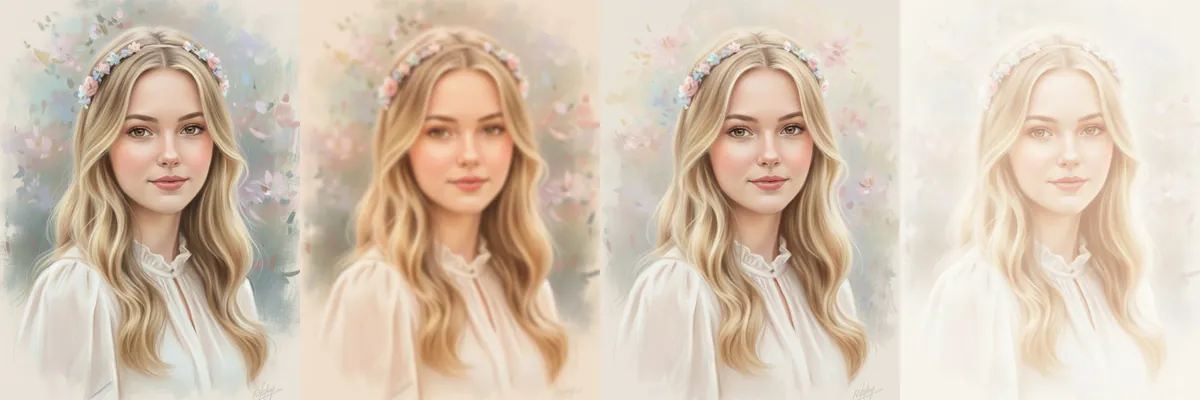
These are tone filters, not new scenes. Each prompt shifts the color, warmth and softness of an existing portrait, from a creamy finish to a bright, glowing haze, while the face, pose and background stay where they are.
Open any of the six in Reshot AI with a photo, or copy the one-line prompt into another editor. The sample row applies all six to the same painted portrait so you can compare the tones side by side.
How these templates use your photo
Each template starts from a photo you pick. The prompt tells the model what to change, and your photo is the reference for everything else. Clear, front-facing photos with even light give the closest match.
1. Smooth and creamy
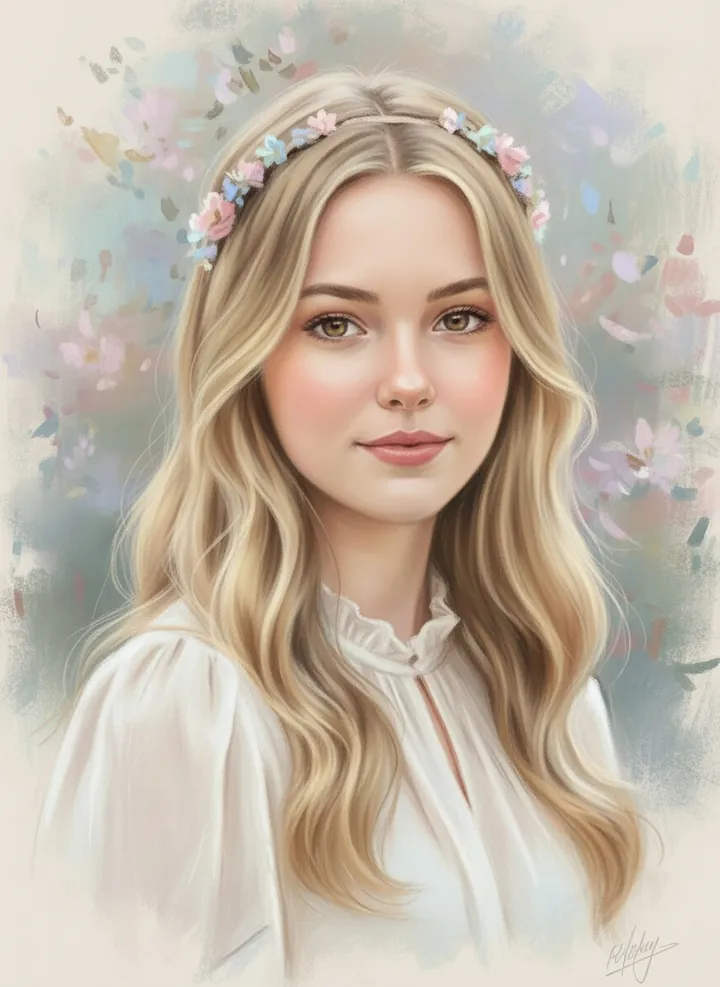
A smooth, creamy finish that softens skin and evens the colors, with cooler greens and pinks kept in the background. The prompt asks for no other modifications.
apply a smooth creamy portrait style with no other modifications
2. Warm soft focus
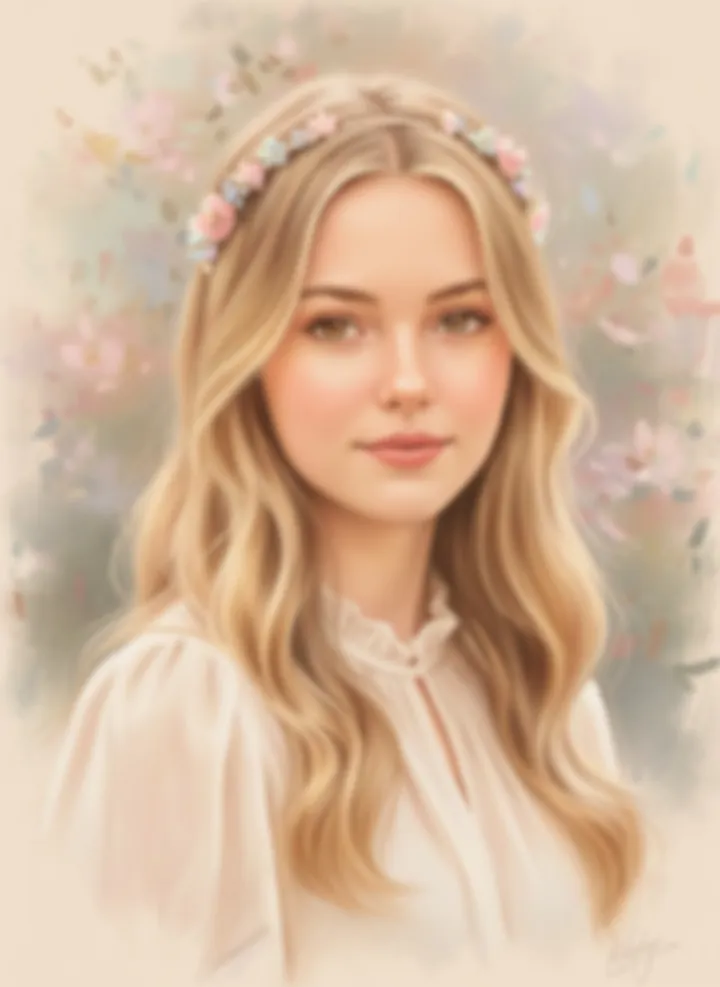
Adds a warm peach cast and a gentle blur across the whole image. The prompt keeps identity unchanged under the softer focus.
Apply a warm soft-focus tone without changing identit
3. Gentle and airy
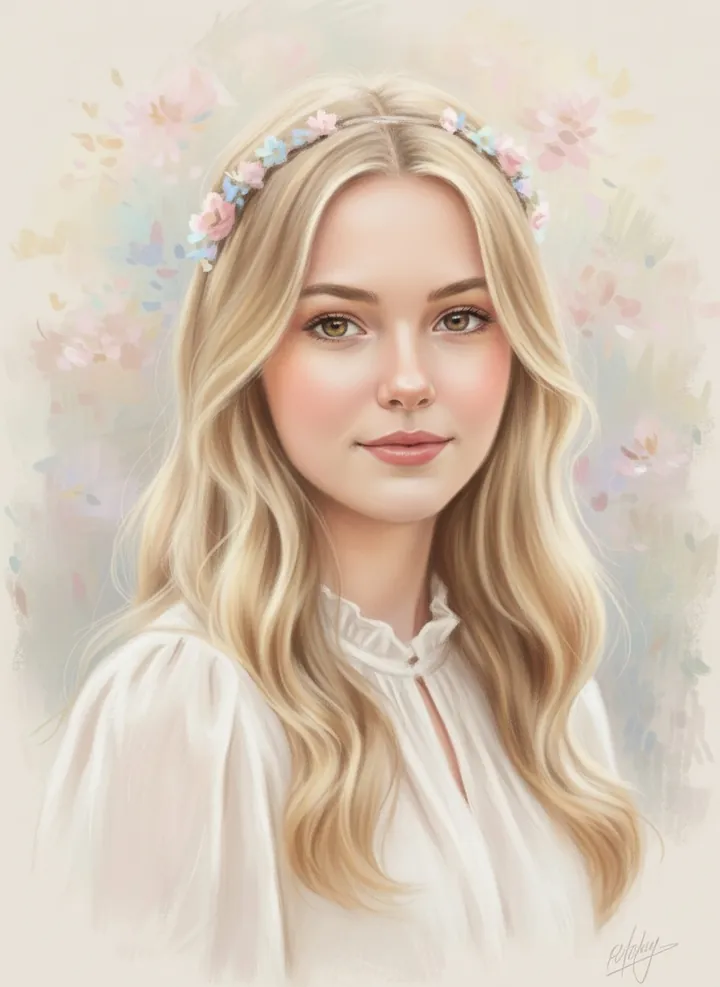
Lifts the shadows and lightens the palette for an airy, pale look. Everything else in the portrait is kept unchanged.
Apply a gentle airy portrait style while keeping everything unchanged
4. Dreamy soft glow

A strong white glow that washes the image toward cream and fades the background. The scene itself is not altered, only the light over it.
Apply a dreamy soft-glow look without altering the scene
5. Subtle warm light
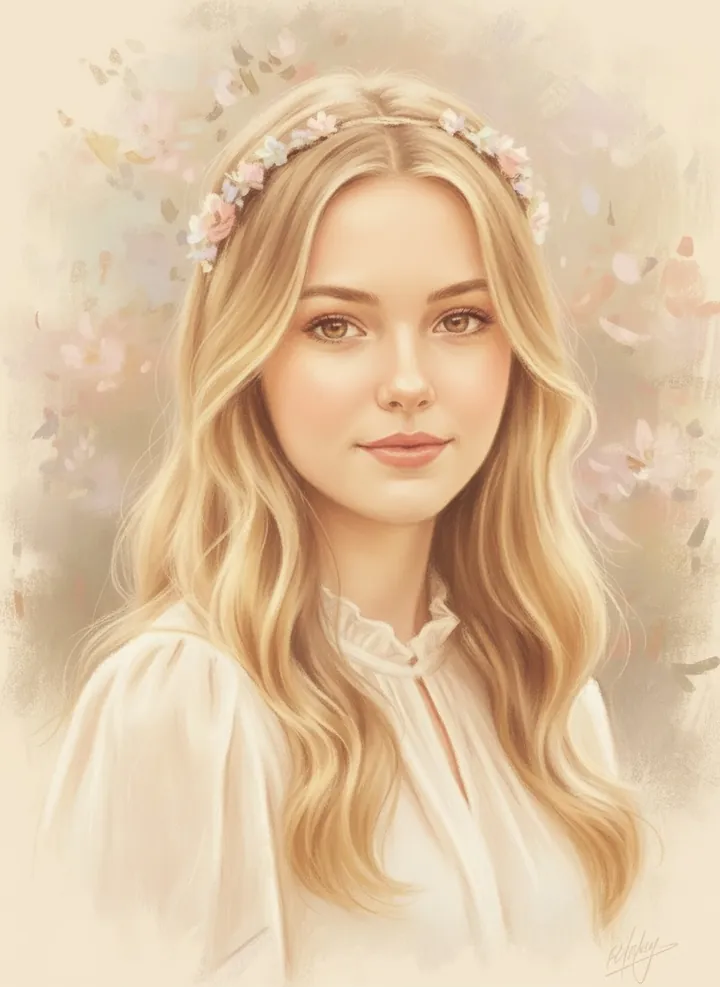
A light golden warmth over the skin and hair, like late-afternoon sun. The original image stays intact apart from the color temperature.
Apply a subtle warm-light portrait filter while keeping the original image intact
6. Balanced natural tone
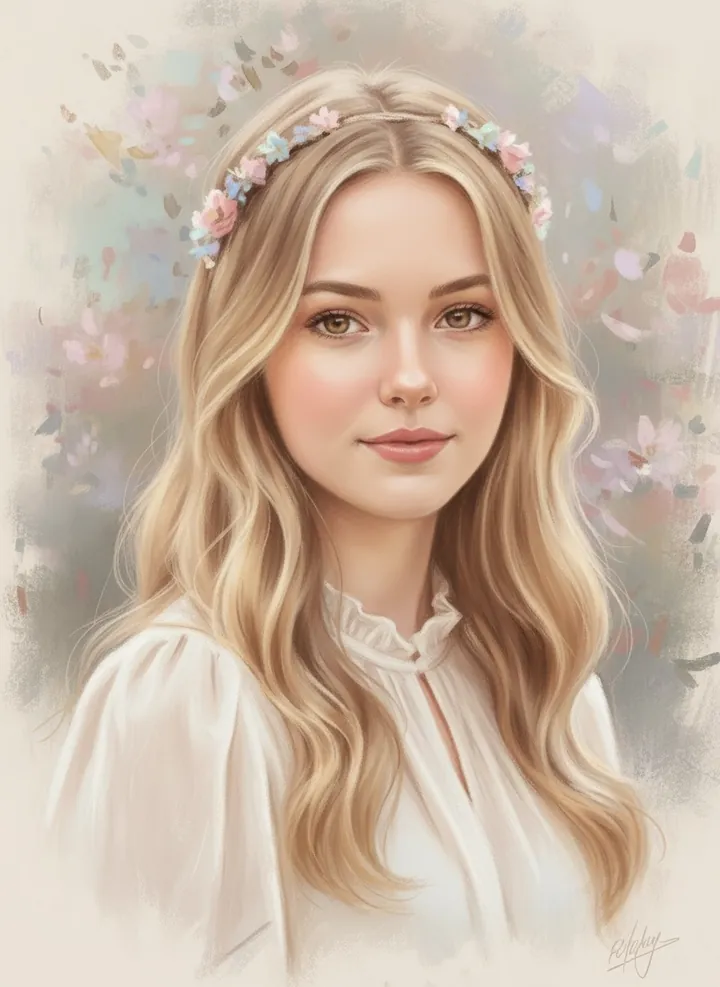
A delicate, even tone that sits between warm and cool, with clear detail in the eyes. The prompt allows zero structural changes.
Apply a delicate balanced portrait tone with zero structural changes
How to use these templates in Reshot AI
- Open Reshot AI on iPhone and find the Soft Portrait category on the home screen.
- Pick a template. Choose a clear, front-facing selfie with good light; it is the reference for your face.
- Generate. Results arrive in the app’s History, so you can come back for them later.
- Want a different expression in the result? Open it in the Face Editor and add a smile, open closed eyes, or turn the head.
Frequently asked questions
Will the result look like me?
Each template uses your photo as the reference and describes the look, not a new face. Clear, front-facing photos with even light give the closest match.
Can I use these prompts outside Reshot AI?
Yes. The copy button gives you the full prompt; it works in any image tool that accepts a reference photo. Results will differ by model.
Is Reshot AI free?
The app is free to download. Generating templates uses credits or a Premium subscription; details are in the app.
Try Soft Portrait in Reshot AI
Download Reshot AI, pick a template, choose a selfie.
⬇ Download on the App Store