How to Create Facial Expressions for YouTube Thumbnails
Thumbnail faces drive clicks — wide eyes, raised brows, open-mouthed shock. But shooting a new exaggerated expression for every video gets old fast. With an AI expression editor you can generate every thumbnail expression from one good base photo, in minutes.
Why expressive thumbnails win clicks
Human faces are the first thing viewers scan in a feed, and high-arousal expressions — surprise, excitement, disbelief — consistently correlate with higher click-through rates. Top creators reshoot expressions for every upload. Reshot AI shortcuts that: one well-lit photo of you becomes a reusable expression kit, with eyes, brows, mouth, and head angle each on a slider.
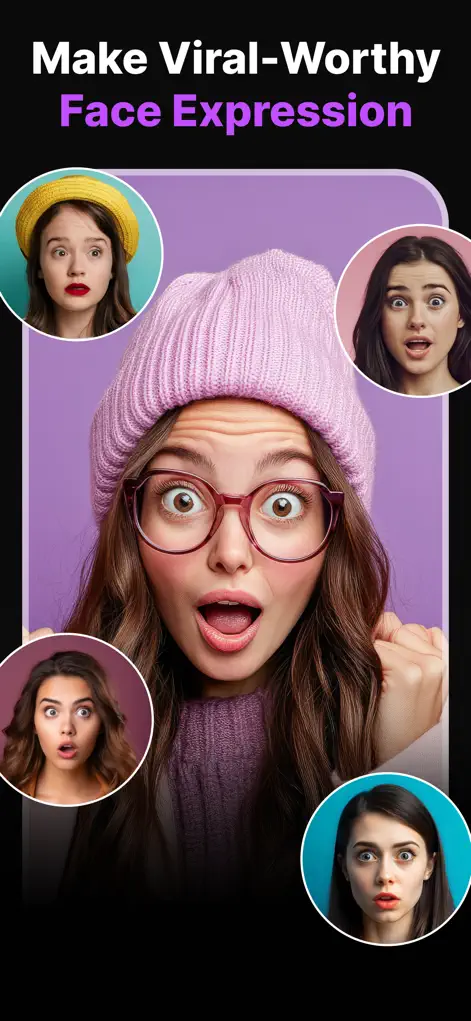
Step-by-Step: How to Create Facial Expressions for YouTube Thumbnails
- Shoot one good base photo. Face the camera in even lighting against a simple background — neutral expression. This is your master file.
- Push the eye and brow sliders. In the Eye Expression Studio, raise the eyebrows and open the eyelids wide for shock, or angle brows down for a skeptical squint.
- Shape the mouth. Open the mouth for a gasp, add a huge grin for excitement, or pull it into a frown for disappointment thumbnails. Exaggeration is the point here — go further than you would for a normal photo.
- Angle the head and export variations. Tilt or turn the head for dynamism, then export multiple expression versions in high-res and drop them into your thumbnail template.
Base photos that survive big expression changes
Exaggerated expressions stretch the AI further than subtle fixes, so the base photo matters more here. Use a sharp, close-up shot of your face looking roughly at the camera, with nothing covering your eyes or mouth: no hands, mic, sunglasses or hair across the eyes.
A still grabbed from a wide vlog frame, a blurred action shot or a side-on angle tends to give weak results or none. Pushing a neutral face all the way to shock is also a large change. If a version looks off, pull the sliders back, or shoot a base photo that is already partly expressive, for example with your mouth slightly open.
Fitting edited faces into your thumbnail workflow
Thumbnails are seen small, so check each export shrunk down on your phone. If the expression doesn't read at that size, make it bolder or crop tighter on the face.
- Name exports by emotion so you can find the right face quickly when designing.
- Match the expression to what actually happens in the video; a shocked face on a calm tutorial sets the wrong expectation.
- Keep the light on your face consistent with the background you place it on.
- Rotate between expressions so your channel page doesn't show the same face on every video.
Planning your editing sessions
Reshot AI is free to download, but edits need a Premium subscription or credit packs. That makes it efficient to generate a batch of expressions in one sitting and build your library, rather than opening the app for each upload.
Try It on Your Own Photo
Expression Editor – Reshot AI is free to download on the App Store. Fix your first photo in under a minute.
⬇ Download Reshot AIFrequently Asked Questions
Can AI make exaggerated expressions look like me?
Yes — Reshot AI edits your actual face rather than swapping it, so even extreme expressions keep your identity and skin detail.
Is the resolution good enough for thumbnails?
Yes, exports are high-resolution — far above the 1280×720 YouTube thumbnails require.
Can I use the same base photo repeatedly?
That's the ideal workflow: one clean base photo becomes an entire reusable expression library.