How to Add a Smile to a Professional Headshot
Headshot sessions are stressful, and it shows: most people's professional photos look stiff. A genuine, moderate smile usually makes a headshot look warmer and more approachable than a flat, serious expression. If your best headshot has everything except the smile, an AI expression editor can fix exactly that — without booking another session.
What kind of smile works for professional photos?
The goal is approachable, not ecstatic. A closed-lip or slightly open smile with mildly engaged eyes signals confidence; a huge grin can undercut formality. Because Reshot AI gives you a continuous smile slider plus eye and eyebrow controls, you can build precisely that professional middle ground — and export multiple versions to compare.
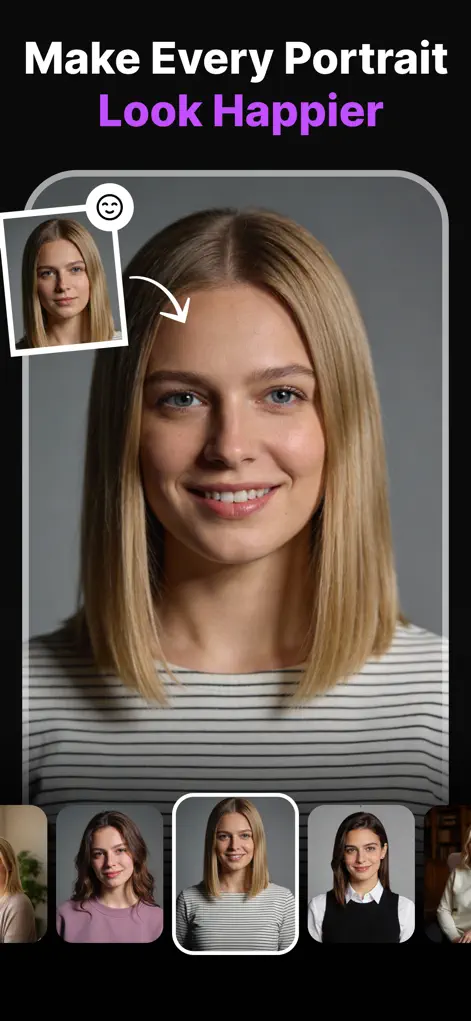
Step-by-Step: How to Add a Smile to a Professional Headshot
- Import your best headshot. Choose the frame with the best lighting and pose — ignore the expression.
- Add a moderate smile. In the Smile Enhancer, aim for a natural setting (roughly 30–50%). Slightly open or closed-lip both work; pick what matches your usual smile.
- Engage the eyes. A real smile touches the eyes. Nudge eyelid openness down a touch and raise the eyebrows slightly so the smile doesn't look pasted on.
- Square up and export. If your head tilts awkwardly, level it with the Head Pose Adjuster. Export in high resolution for LinkedIn, your CV, or your company page.
What your starting headshot needs
A headshot is already the kind of photo Reshot AI handles best: one face, close up, facing the camera. Sharp focus, even light and a face that fills a good part of the frame give the cleanest smile edit.
Avoid starting from a crop of a group photo where your face was small, a blurry frame, or a shot with your head turned far to one side. If glasses frames or reflections cover your eyes, the eye adjustments may not work well. Keep the change modest too: moving from a serious face to a gentle smile is more reliable than turning a stern expression into a wide grin.
Before you put it on LinkedIn
People who know your face will see this photo, so it should look like you on a good day, not like someone else.
- Compare the edit with a recent candid photo of you smiling; the shape of the smile should match.
- View it at the small size it will appear next to your name in comments and search results, where expression matters more than detail.
- If the photo looks a little soft, run the AI Photo Enhancer after the smile edit.
- Keep the original file in case you want to redo the edit later.
Try It on Your Own Photo
Expression Editor – Reshot AI is free to download on the App Store. Fix your first photo in under a minute.
⬇ Download Reshot AIFrequently Asked Questions
Will an AI-edited headshot look natural on LinkedIn?
Yes — moderate smile adjustments preserve your identity, skin texture, and lighting, so the result reads as a photo of you on a better day, not an edit.
Can I fix my head angle too?
Yes, the Head Pose Adjuster levels tilts and turns your face toward the camera — both common headshot problems.
Do I need a professional photo to start with?
No. A sharp, well-lit selfie against a clean background works — fix the expression and pose in Reshot AI.